
Merge PDF Files Securely Online (No Uploads)
Merge PDF files securely without uploading. This free 2026 guide shows how AeroPDF combines PDFs locally in your browser with 100% privacy.
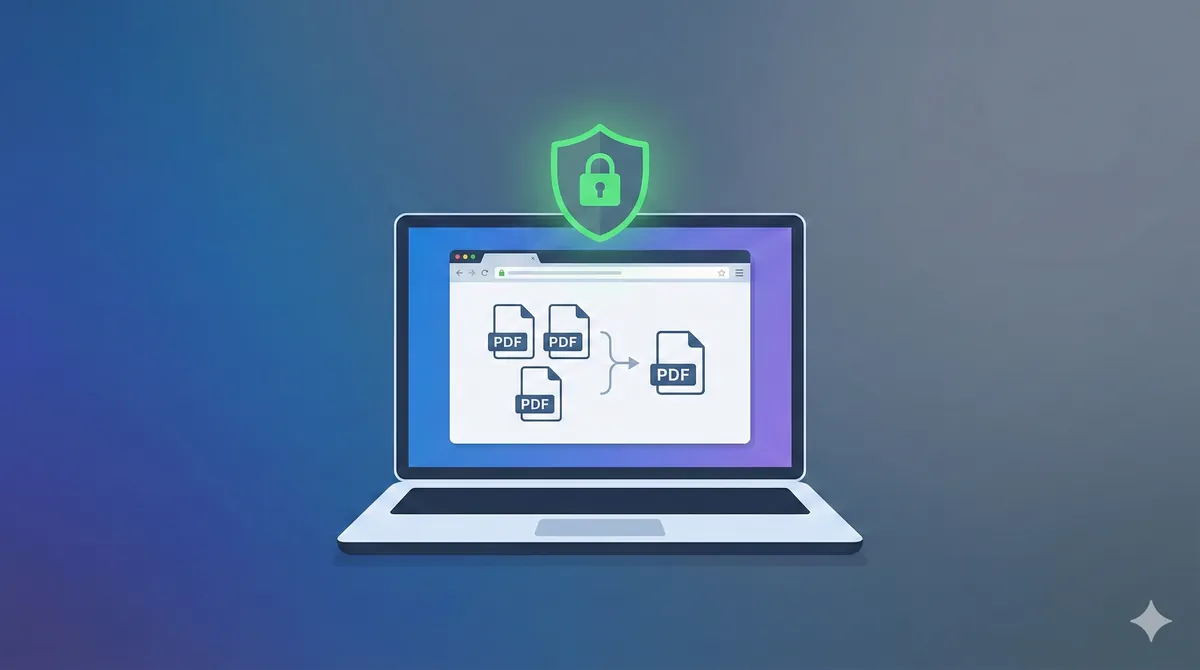
How to Merge PDF Files Securely (Quick Answer)
To merge PDF files securely without uploading:
- Use a client-side PDF tool like AeroPDF
- Ensure files are processed locally in your browser
- Avoid server-based PDF websites that upload your data
- Download the merged file instantly
AeroPDF uses 100% client-side processing, meaning your files never leave your device. Start merging now →
In the digital age, PDF files are the gold standard for sharing documents. Lawyers, students, and freelancers all deal with PDF files daily. But here lies a common frustration: managing scattered files is hard.
Imagine this: You're sending an email to a client. You attach a cover letter, a proposal, and an invoice separately. Sending five attachments isn't just messy it looks unprofessional and confuses the recipient. The solution? Merge them into one cohesive document.
If you're looking to merge PDF files securely without uploading them to a server, client-side tools like AeroPDF are the safest option available in 2026.
This guide is part of AeroPDF's PDF Security Series, where we cover online PDF safety, client-side processing, and GDPR-compliant document tools.
The Problem with Traditional PDF Tools
For years, users faced a frustrating dilemma. To merge files, you had two bad options:
- Pay expensive subscriptions for heavy software like Adobe Acrobat Pro (~$239/year)
- Risk your privacy by uploading sensitive documents to online PDF tools that process your data on unknown cloud servers
Enter the third, superior option: AeroPDF.
In this comprehensive guide, you'll learn how to merge PDF files securely using revolutionary client-side processing. This means your files never leave your device ever.
Is It Safe to Merge PDFs Online?
It depends on the tool. Most online PDF tools are NOT safe because they upload your files to their servers. Here's what happens:
How Traditional Server-Side Tools Work
- You upload your file to their website
- Your file travels across the internet to their server
- Their server processes (merges) the file
- You download the converted file back
The Security Risks
Data in Transit Sending files across the internet exposes them to hackers. On public Wi-Fi? "Man-in-the-Middle" attacks can intercept your data before it even reaches the server.
Server Breaches No server is unhackable. If your tax returns, contracts, or medical records are sitting on a compromised server, they're vulnerable.
Unclear Privacy Policies Some free tools have vague terms. They might legally "analyze" your data for AI training or marketing. When you use a "free" server-side tool, you often pay with your privacy.
Compliance Violations For professionals in law (GDPR, CCPA) or healthcare (HIPAA), uploading client data to a non-compliant third-party server can be illegal.
What Is Client-Side PDF Merging & Why It's More Secure
AeroPDF is built differently. We use advanced web technologies like WebAssembly (Wasm) and modern JavaScript to run the PDF processing engine directly inside your web browser.
Client-Side vs Server-Side: The Key Difference
| Aspect | Server-Side Tools | Client-Side (AeroPDF) |
|---|---|---|
| Where files go | Uploaded to remote server | Stay on YOUR device |
| Who can see files | Their company, hackers | Only you |
| Speed | Slow (upload + download) | Instant |
| Works offline | No | Yes |
| GDPR compliant | Often unclear | Yes, by design |
Why This Is a Game-Changer
When you use AeroPDF to merge PDF files securely online, the experience is completely different:
- No Uploads: Files are processed on your device using your computer's CPU and RAM
- Zero Knowledge: We cannot see your files—they never touch our servers
- Instant Speed: No waiting for uploads; merging happens as fast as your computer can process
- Works Offline: Load the page, disconnect from the internet, and the tool still works perfectly
Technical Deep Dive: WebAssembly
Think of traditional tools like a restaurant: You send ingredients (files) to the kitchen (server), they cook, and send food back. You don't know who touched your meal.
AeroPDF is like a private chef coming to your kitchen. We send the "recipe" (code) to your browser. Your browser does the processing. The ingredients never leave your house.
Best Secure PDF Merger in 2026: AeroPDF vs Others
Choosing the right tool matters. Here's how the top options compare:
| Feature | AeroPDF | Adobe Acrobat Pro | iLovePDF | SmallPDF |
|---|---|---|---|---|
| Price | ✅ FREE | ❌ $239/year | ⚠️ $7/mo | ⚠️ $9/mo |
| Privacy | ✅ 100% Local | ⚠️ Cloud-based | ❌ Server uploads | ❌ Server uploads |
| No Account Needed | ✅ Yes | ❌ No | ⚠️ Limited | ⚠️ Limited |
| File Limits | ✅ None | ✅ None | ❌ 2 files/day free | ❌ 2 files/day free |
| Works Offline | ✅ Yes | ✅ Yes (desktop) | ❌ No | ❌ No |
| GDPR Compliant | ✅ Yes | ⚠️ Check terms | ⚠️ Check terms | ⚠️ Check terms |
| WebAssembly Tech | ✅ Yes | ❌ No | ❌ No | ❌ No |
Why AeroPDF Wins
For Privacy: Only AeroPDF uses true client-side processing. Your files never leave your device.
For Cost: It's 100% free with no hidden limits or watermarks.
For Speed: No upload wait time. Instant processing.
For Compliance: GDPR and HIPAA-friendly by design—no data custody issues.
Why AeroPDF Is Trusted
Before we dive into the steps, here's why thousands of users trust AeroPDF:
- ✅ No accounts required – Start merging instantly
- ✅ No ads or trackers – Clean, distraction-free experience
- ✅ Open-source PDF libraries – Transparent, auditable code
- ✅ GDPR & CCPA friendly – Compliant by design (no data leaves your device)
- ✅ 100% free – No hidden "Pro" subscriptions
- ✅ WebAssembly technology – Native-app performance in your browser
How to Merge PDF Files Securely Online (Step-by-Step)
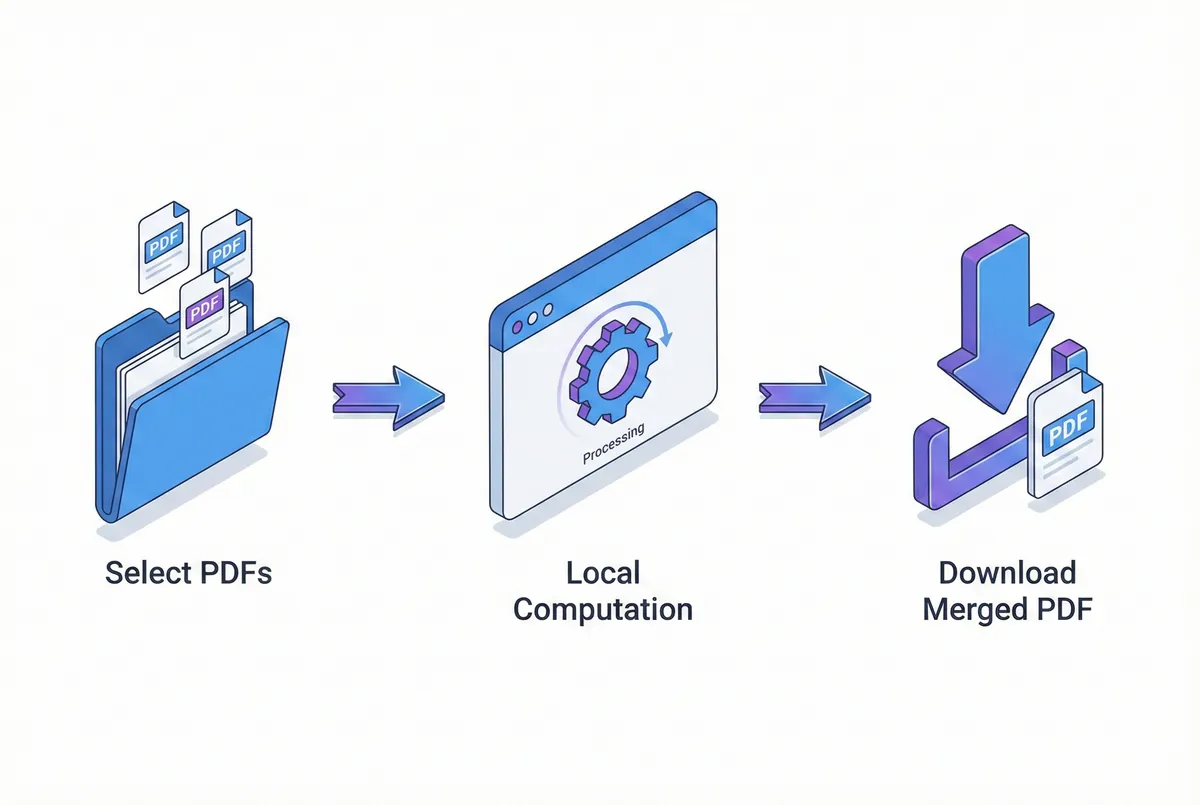
Ready to merge PDF without uploading to any server? Follow this simple guide.
Step 1: Open the Merge Tool
Navigate to AeroPDF Merge PDF. You'll see a clean interface with no "Sign Up" barriers blocking your way.
Step 2: Select Your Files
Click "Select PDF Files" to browse your computer, or simply drag and drop your documents onto the upload area.
Pro Tips:
- Select files from different folders
- Mix PDFs with images (JPG, PNG) if needed
- Add as many files as your RAM allows
Step 3: Arrange and Organize
Once files are added, you enter Editor Mode with full control:
- Reorder: Drag thumbnails to change sequence (e.g., Cover Letter before Resume)
- Rotate: Scanned a page upside down? Click the rotate icon
- Remove: Added a duplicate? Click 'X' to remove it
Step 4: Merge and Save
Click the "Merge PDF" button. The progress bar jumps to 100% instantly—remember, there's no uploading! Your merged file downloads immediately.
Are Free PDF Tools Legal Under GDPR?
Yes, but only if they don't process your data on external servers.
Under GDPR:
- You are responsible for where client/customer data goes
- Uploading to third-party servers may violate data protection rules
- Client-side tools like AeroPDF are GDPR-compliant by design
For lawyers, healthcare providers, and financial advisors: Using server-side PDF tools with client data could expose you to regulatory risk. Client-side processing eliminates this concern entirely.
Can Google Read My PDFs?
Not with AeroPDF.
When you use server-side tools:
- Files travel through the internet
- They're stored (even temporarily) on third-party servers
- Those servers may be indexed, breached, or analyzed
With AeroPDF:
- Files never leave your browser
- Google can't see what doesn't exist on a server
- Your documents remain 100% private
Advanced Tips for Power Users
Combining Different File Formats
Often, your work isn't just in PDFs. You might have a contract in Word and a chart in Excel.
Strategy:
- First, use the Word to PDF converter to convert documents
- Convert Excel sheets using PDF conversion tools
- Use the merger tool to combine everything into a single PDF
Handling Password-Protected Files
If a file is password protected, the merge might fail.
Solution: Use the Unlock PDF tool first to remove the password (if you have authorization), then merge the unlocked version.
Adding Page Numbers After Merging
When you combine five documents, original page numbers become confusing.
Tip: After merging, use Add Page Numbers to stamp consistent numbering (e.g., "1 of 50") onto your final document.
Reducing File Size
Merged ten high-res scans? Your PDF could be 200MB—too big to email.
Fix: Use Compress PDF to reduce file size while maintaining quality.
Who Needs Secure PDF Merging?
Security isn't just for spies. Here's why different professionals choose client-side merging:
Legal & Real Estate Professionals
Contracts often include signed pages, addendums, and exhibits. Merging them into one "Executed Agreement" packet is essential.
- Risk: Uploading a client's NDA to a public server could violate privacy agreements
- AeroPDF Solution: Safely merge confidential documents without them ever leaving your firm's hardware
Healthcare Providers
Doctors often combine patient intake forms with lab results.
- Risk: HIPAA regulations are strict about data custody
- AeroPDF Solution: Client-side processing keeps PHI (Protected Health Information) strictly local
Students & Researchers
Compiling a thesis involves combining a title page, chapters, and references.
- Benefit: AeroPDF creates professional portfolios without watermarks
5 Common Mistakes to Avoid When Merging
Mistake 1: Merging Encrypted Files
If a file has an "Owner Password," it might look openable but fail to merge. Always check for password protection first.
Mistake 2: Mixing Page Sizes
Merging Letter-sized pages with A4? It can look messy when printed. Standardize sizes beforehand.
Mistake 3: Ignoring File Size
Always check the final file size. If too big, use Compress PDF to shrink it.
Mistake 4: Losing the Originals
Keep original source files in a separate folder. Don't overwrite them with the merged version.
Mistake 5: Using Sketchy Tools
Searching "free PDF merge" yields thousands of results—many full of ads or malware. Stick to trusted, privacy-first tools like AeroPDF.
Frequently Asked Questions
Is AeroPDF really free?
Yes! We provide free access to all essential tools. No hidden "Pro" subscriptions required to save your file.
Is there a mobile app?
You don't need one! AeroPDF works in any modern mobile browser (Safari, Chrome) on iPhone or Android. Modern phones have enough processing power for instant merging.
My PDF has sensitive financial data. Is it safe?
Absolutely. Because we use client-side processing, your financial data is never sent to us. It's as safe as opening the file offline on your own computer.
Can I merge Word and PDF files together?
Use our Word to PDF tool first to convert, then use the merger to combine everything.
Are files deleted from your servers?
Trick question! Since files are never uploaded, there's nothing to delete. They stay on your device the entire time.
Why is my merge failing?
Check if any files are password protected. Also ensure your browser is up to date—old versions of Chrome or Safari might cause issues.
Is it safe to merge PDFs online?
Only if you use a client-side tool. Server-side tools upload your files to third-party servers, creating privacy risks. AeroPDF processes everything locally.
Are free PDF tools legal under GDPR?
Yes, if they don't upload your data. AeroPDF is GDPR-compliant because files never leave your device.
Can Google read my merged PDFs?
Not with AeroPDF. Since files never touch external servers, they cannot be indexed or accessed by anyone but you.
Conclusion
Managing documents shouldn't be hard. It certainly shouldn't require compromising your privacy.
The old way: Upload your private files to a stranger's server. The new way: Client-side processing with AeroPDF.
By choosing a secure PDF merger like AeroPDF, you're choosing the safest, fastest, and most modern way to handle your digital paperwork—whether you're combining case files, organizing a portfolio, or just decluttering your desktop.
Stop waiting for uploads. Stop risking your data.
Start Merging PDFs Securely Now →
Related Reading
- Is It Safe to Merge PDFs Online?
- Client-Side vs Server-Side PDF Tools: What's the Difference?
- Best Secure PDF Merger for GDPR Compliance
- Can Online PDF Tools Read Your Files?
Written by the AeroPDF Team, focused on privacy-first document tools. Last updated: January 2026.
Ready to Try AeroPDF?
All our 22+ PDF tools are 100% free and work directly in your browser. Zero uploads, no signups — total privacy.